
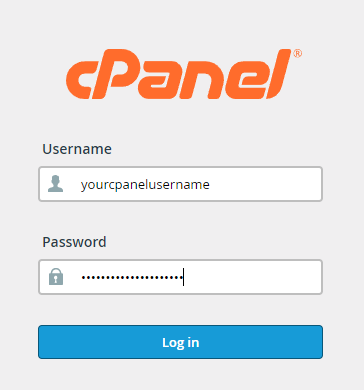
To login to your cPanel account, you can login via
- https://yourdomain.com.au/cpanel (your actual domain) or;
- via MyToolbox.
Your cPanel username and password would have been sent to you in the email when you signed up with us, subject titled “New Account Information“. If you have misplaced this email, please contact us and we are happy to resend you this email.
Before contacting us
Please make sure that you are officially listed as an authorised account holder on your account. We cannot provide login information to individuals who are not the account owner or designated as authorised users on the account.
Overview
This wizard guides you through the setup of a MySQL database, user accounts, and user privileges.
We recommend that you use this wizard to create your first database and user.
To create additional databases or users, you can also use the MySQL Databases interface.
1. To begin, log into your cPanel account via either of the methods outlined above.
2. Under the Databases section of cPanel, click MySQL Database Wizard
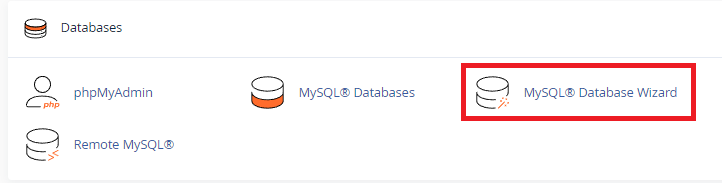
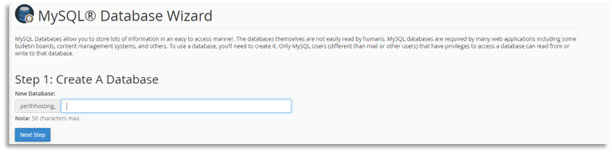
To create a database using the wizard, perform the following steps:
1. In the New Database text box, enter a name for your database and click Next Step.
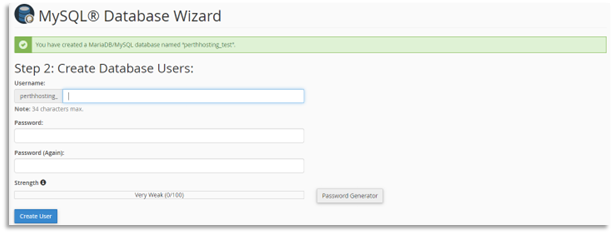
2. In the Username text box, enter a name for the user who you will be granted privileges to interact with this database.
3. You will need to create a password for this user. Enter and confirm your chosen password by entering them into the appropriate text box.
4. Click Create User.
Important
The system evaluates the password that you enter on a scale of 0 to 100. 0 indicates a weak password, 100 indicates a strong password.
Some web hosts require a minimum password strength.
A green strength meter indicates that the password is equal to or greater than the required password strength.
You can click the Password Generator to generate a strong password.
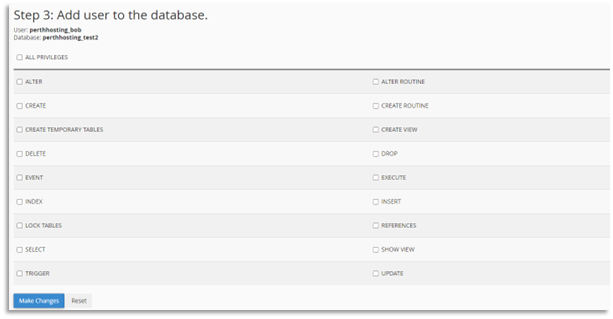
5. You will be presented with a screen similar to below. Select the boxes next to the privileges that you would like to grant to this user, or select All Privileges to grant them all.
6. Click Make Changes.
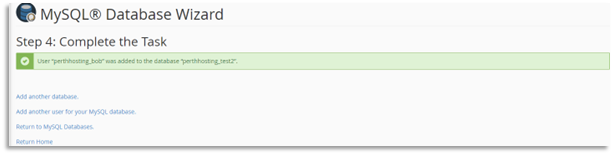
7. Look for the confirmation message that your created user has been added to the database successfully.
Additional Options
After you have completed the database wizard set up, you can select from the following options:
- Add another Database: Click to return to the beginning of the MySQL Database Wizard to add more Databases.
- Add another MySQL Database User: Click to open the MySQL Database interface to create additional user accounts and assign them to a database.
- Return to Home: Click to return to the cPanel home page.