
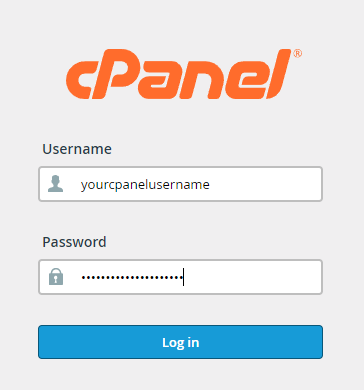
To login to your cPanel account, you can login via
- https://yourdomain.com.au/cpanel (your actual domain) or;
- via MyToolbox.
Your cPanel username and password would have been sent to you in the email when you signed up with us, subject titled “New Account Information“. If you have misplaced this email, please contact us and we are happy to resend you this email.
Before contacting us
Please make sure that you are officially listed as an authorised account holder on your account. We cannot provide login information to individuals who are not the account owner or designated as authorised users on the account.
Sometimes websites require different modules to function correctly such as MYSQLi, mcrypt or the Zend Guard Loader. Unfortunately, if you are on Plesk (Windows), this won’t work.
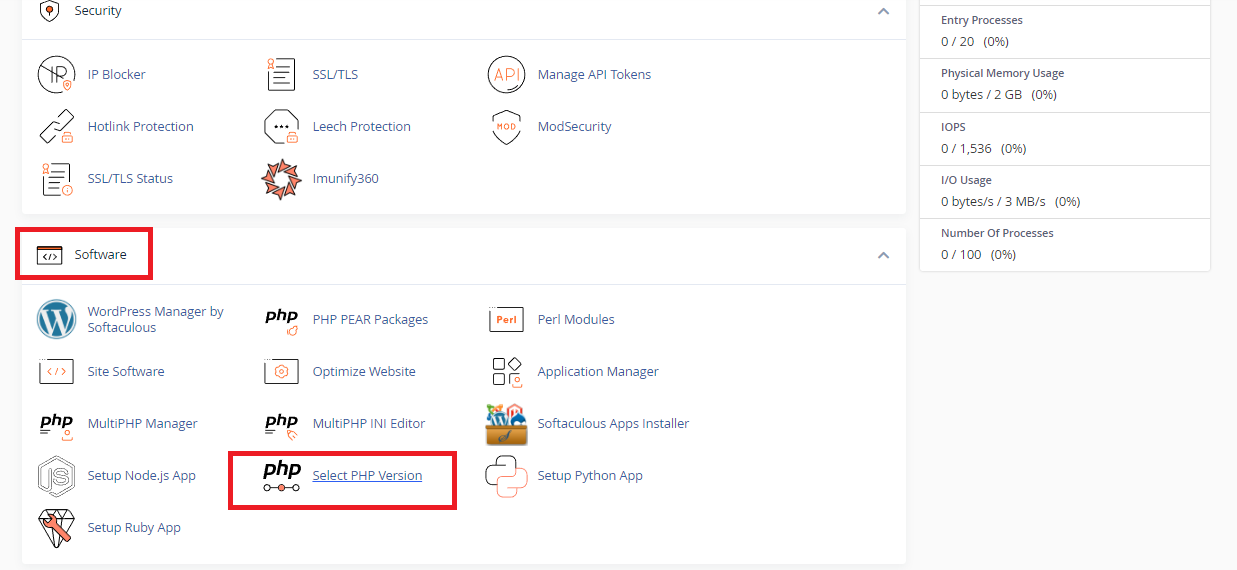
Step 1: Once logged in, scroll down to “Software“
Step 2: Click on “Select PHP Version“
Please Note
While we recommend that you at least use PHP 8.2, we encourage all customers to use the latest stable version of PHP whenever possible. At this time the latest stable version is PHP 8.4
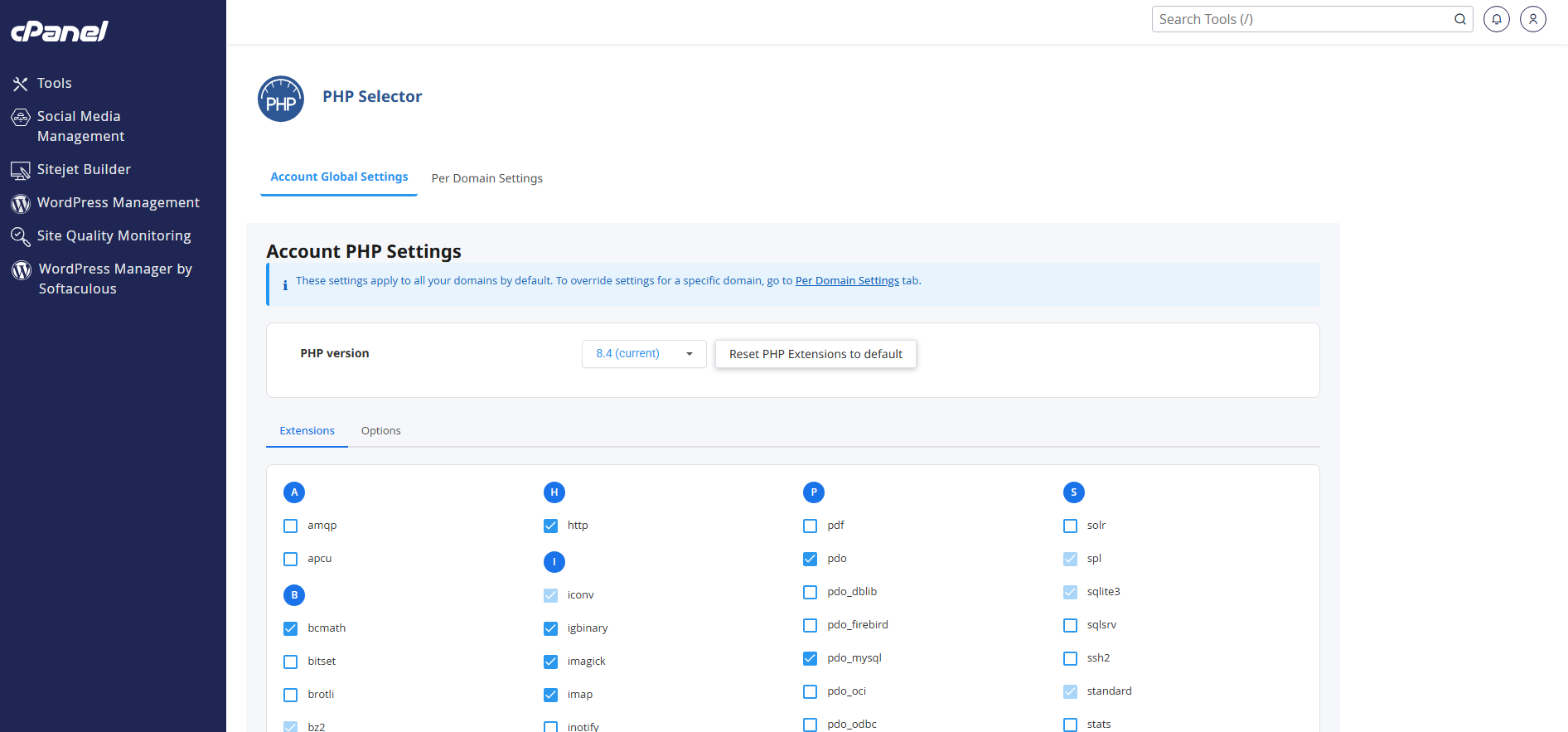
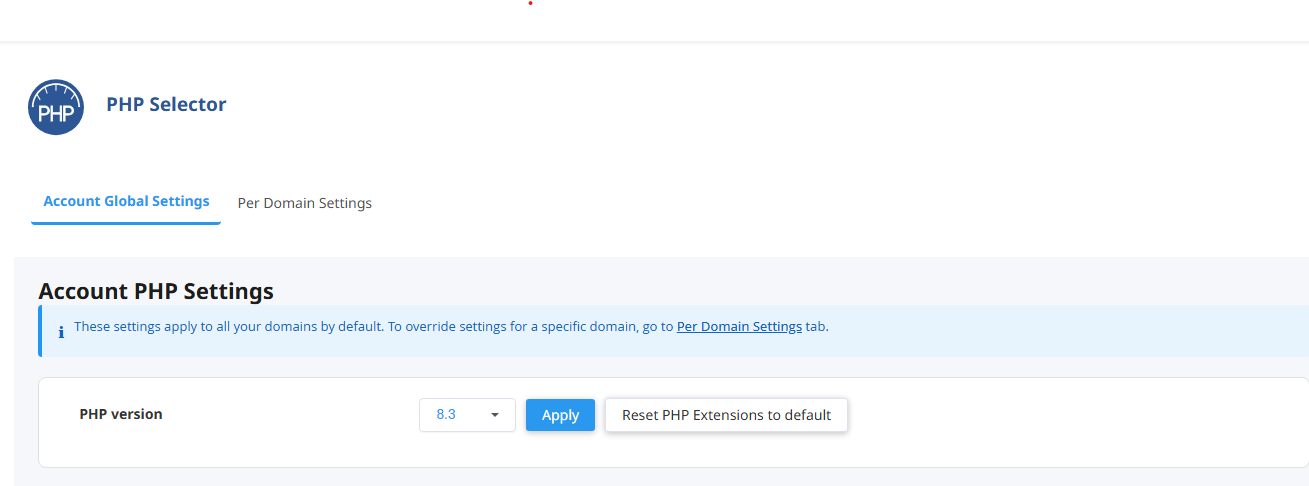
Step 3: Select the Extensions tab and a list of modules will be displayed. Ensure you have selected the PHP version you wish to enable modules for. If you need to change this you can do so from the drop down menu and then click Apply to save. You can then proceed and select/deselect the modules you need for that PHP version.
Please Note:
Perth Web Hosting will not install any custom modules that are required on a shared server.
Perth Web Hosting recommends enabling the following PHP extensions:
- Fileinfo
- Igbinary
- Imagick
- Intl
- Memcache
- Memcached
- Opcache
- Zip
These PHP extensions are recommended and will be suitable for most websites.
Please note however that some plugins, themes, and custom code may require different PHP extensions enabled.
Once you have enabled and saved your required extensions, select the Options tab.
Perth Web Hosting recommends using the following settings:
- memory_limit: 512MB
- post_max_size: 32MB
- upload_max_filesize: 32MB
Important
The PHP options above are suitable for most websites, however in some cases you may need to use different settings.
If this is the case, please be aware of the following requirements:
post_max_size must be larger than or equal to upload_max_filesize.
memory_limit must be larger than post_max_size and upload_max_filesize.
