
I have already created a Mail Profile. Click here to skip to add an email account on my Mail app.
Adding your email account on Mac Mail.
1. Open the Mail app.
2. Navigate to the menu bar and select Mail. Click on Add Account…

3.Select Other Mail Account… and click Continue.

4. Enter your details:
Name: Enter your display name.
Email Address: Enter your full email address (e.g. name@yourdomain.com.au)
Password: Enter your password.

5.Click on Sign In.
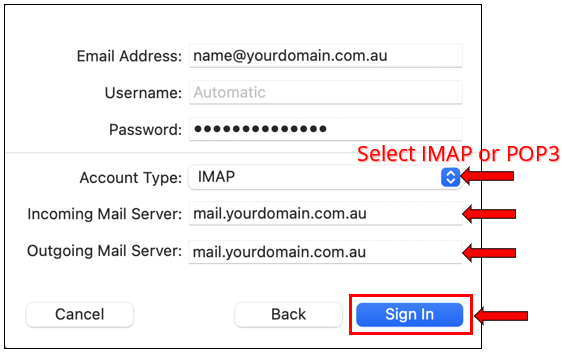
6. Continue to enter the mail server settings:
Account Type: Select either IMAP or POP3 (What’s the difference?)
Incoming Mail Server: Enter mail.yourdomain.com.au (replacing yourdomain.com.au with your actual registered domain name)
Outgoing Mail Server: Enter mail.yourdomain.com.au (replacing yourdomain.com.au with your actual registered domain name)
Please Note:
Please ensure where it says ‘username’, you need to place your full email address, otherwise you will not be able to connect to the email account. Where it says ‘mail.yourdomain.com.au’, replace yourdomain.com.au with your actual domain name. Some of the instruction may differ depending on the version of Microsoft Outlook you are on.
Information
Please note: The incoming and outgoing hostname can be the same on our platform.
7. Click on Sign In.
8. Click Done.

Your email account has been added to Mac Mail.