
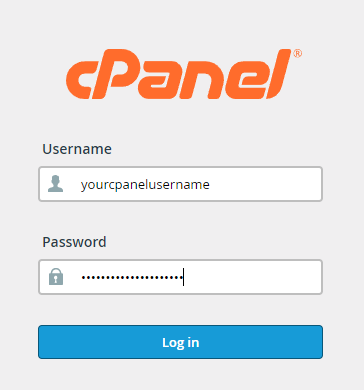
To login to your cPanel account, you can login via
- https://yourdomain.com.au/cpanel (your actual domain) or;
- via MyToolbox.
Your cPanel username and password would have been sent to you in the email when you signed up with us, subject titled “New Account Information“. If you have misplaced this email, please contact us and we are happy to resend you this email.
Before contacting us
Please make sure that you are officially listed as an authorised account holder on your account. We cannot provide login information to individuals who are not the account owner or designated as authorised users on the account.
In your cPanel account you can access your webmail service, known as Roundcube, rather than accessing it through a mail client such as Outlook or Thunderbird.
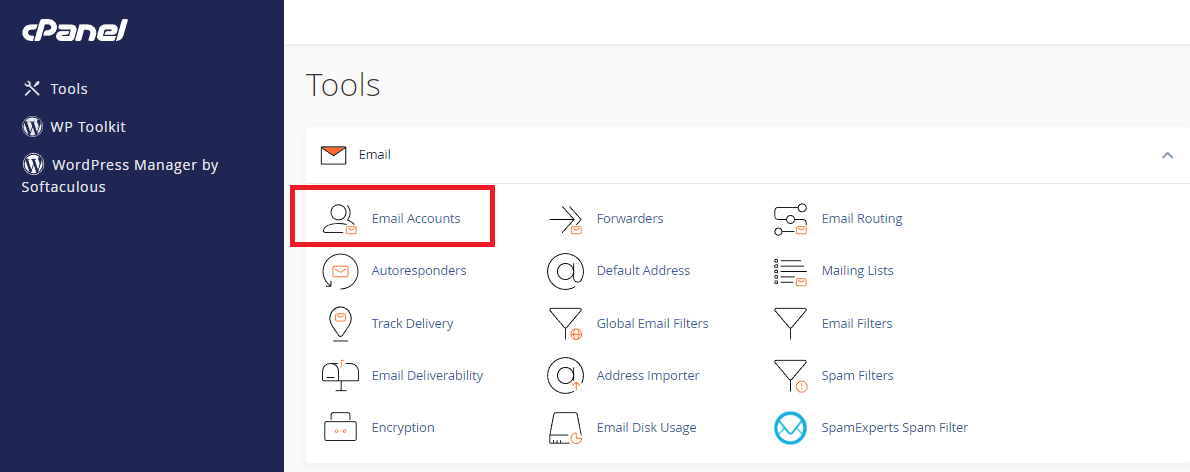
Log into cPanel using either of the methods outlined above, and navigate to the section titled Email, and select the Email Accounts option.
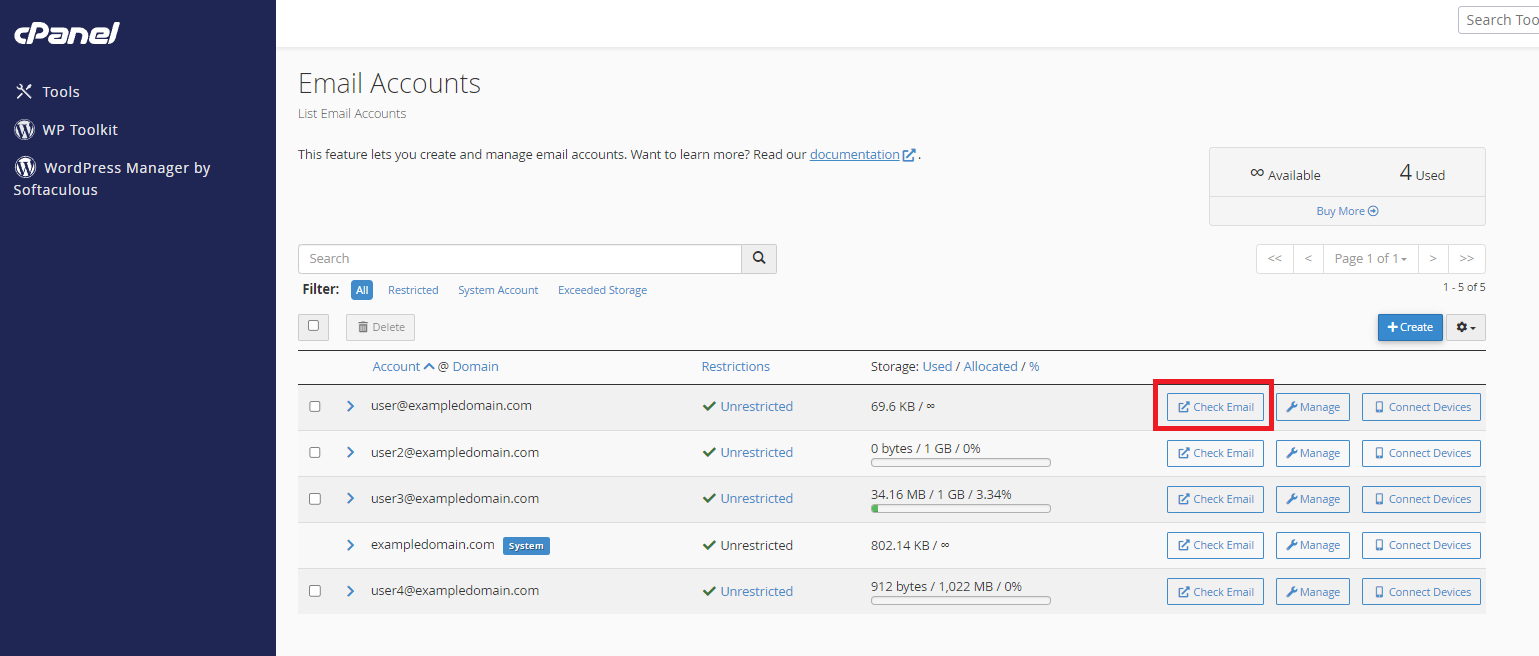
You should now see a page listing all of the email accounts you have created for this cPanel account. You can Create new email accounts, as well as Manage existing email accounts, but in this example we will select the Check Email next to the email account we wish to access.
On the next page you will find various options such as Autoresponders, Email Filters and Two Factor Authentication. To access your webmail account, select the Roundcube option, highlighted red.
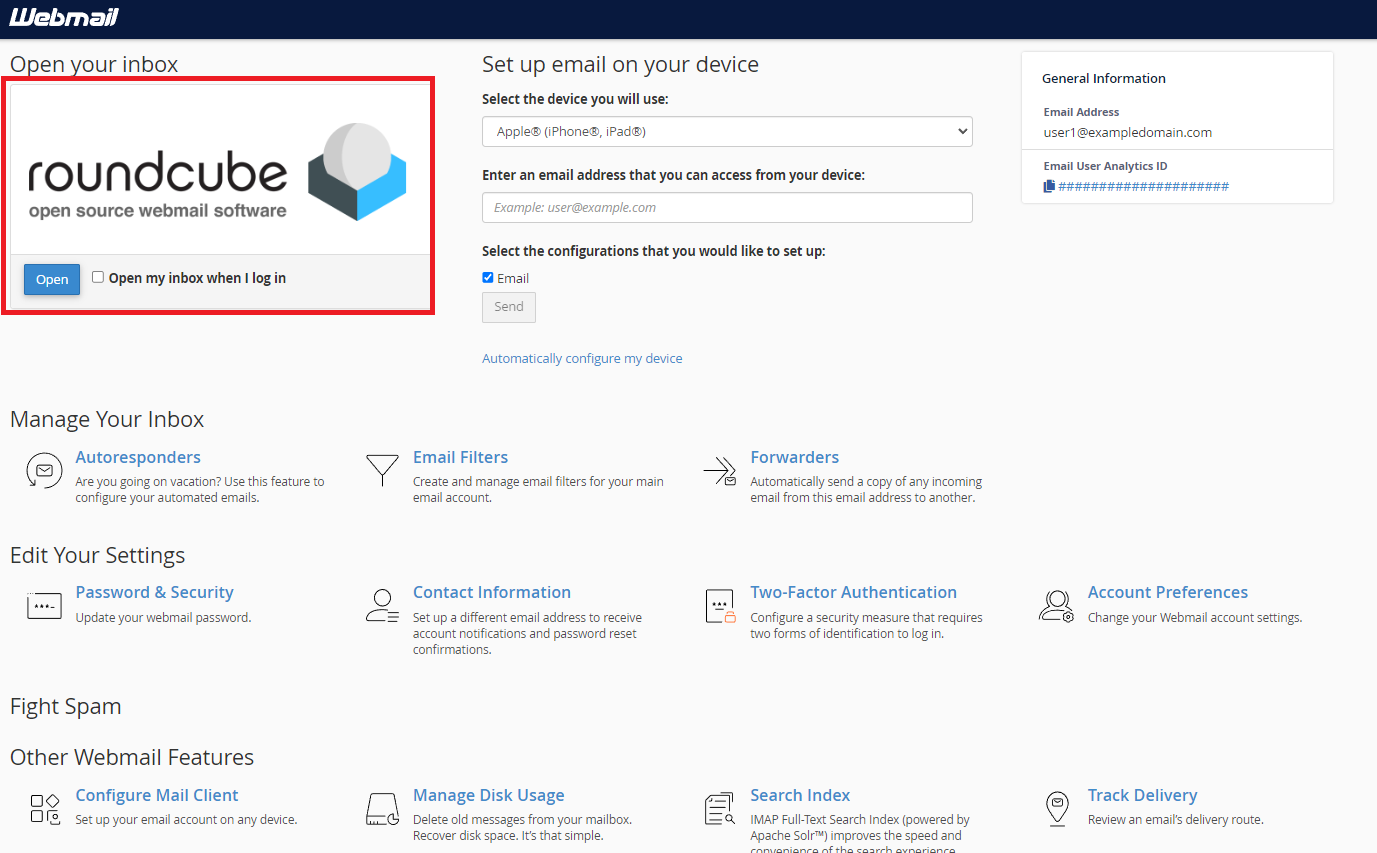
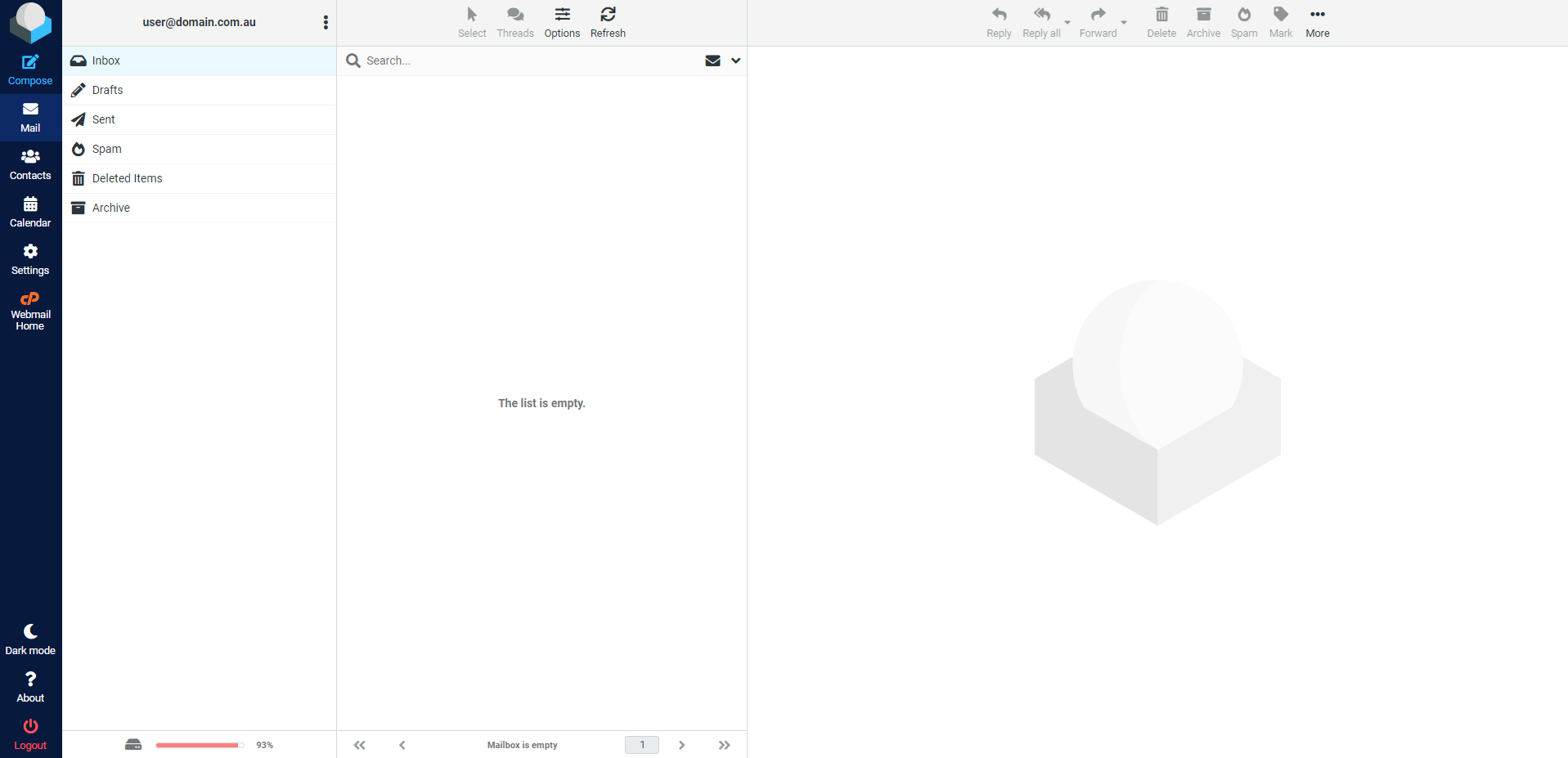
You are now logged into your webmail account, and can access, send, and read emails.
Please Note:
It is essential to understand that on a cpanel server using the email platform (IMAP/POP3), if you are using IMAP, the email will synchronize between the application you use on your computer (such as Outlook or thunderbird); however, if you’re using the calendar, contacts, events and tasks in Outlook, these will not synchronize to the web interface. If you like this functionality, you must migrate to Office 365. You can, however, use Thunderbird, and the Mail, Calander and Tasks will synchronise between the application and the webmail interface.