
To login to your cPanel account, you can login via
- https://yourdomain.com.au/cpanel (your actual domain) or;
- via MyToolbox.
Your cPanel username and password would have been sent to you in the email when you signed up with us, subject titled “New Account Information“. If you have misplaced this email, please contact us and we are happy to resend you this email.
Before contacting us
Please make sure that you are officially listed as an authorised account holder on your account. We cannot provide login information to individuals who are not the account owner or designated as authorised users on the account.
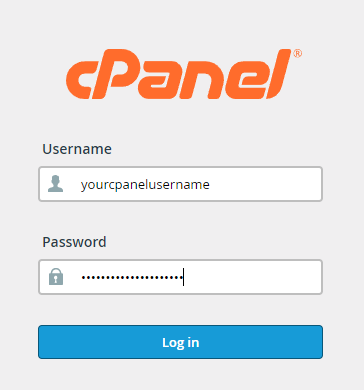
Step 1: Login to your cPanel account using either of the methods outlined above.
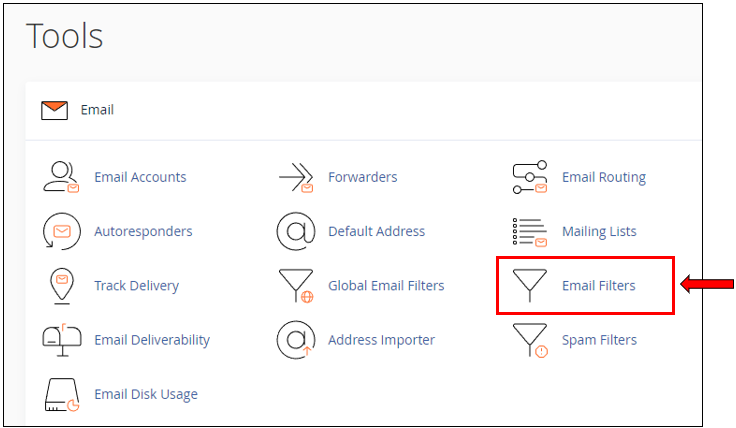
Step 2: Once logged into cPanel, scroll down to Email section, then click on Email Filters.
Please Note:
If you would like to set up the filter for your entire domain (i.e. All accounts of @yourdomain.com.au), please select Global Email Filters.
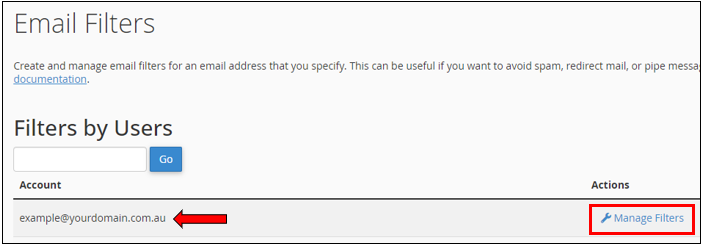
Step 3: Select the email account which is receiving the messages (i.e. example@yourdomain.com.au).
Then click on Manage Filters.
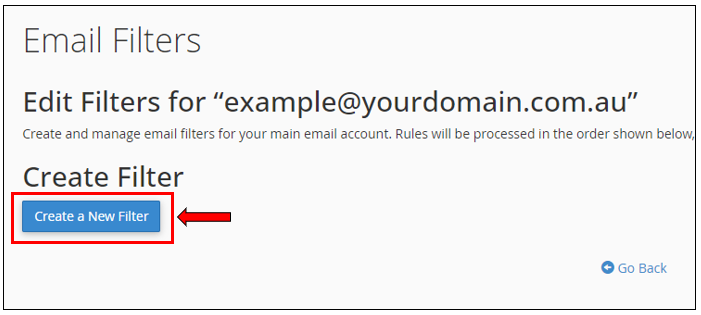
Step 4: Click on Create a New Filter.
Step 5: Complete the following:
Filter Name: Set the name of the filter, which will be displayed on your list of Email Filters.
Rules: Set the rules for From to Equals or Contains
• To block a whole domain
Enter: spam.com.au
• Or to block a specific address
Enter: user@spam.com.au
Actions: Select Discard Message.
Or the alternative is to Deliver to Folder and set the folder to Junk.
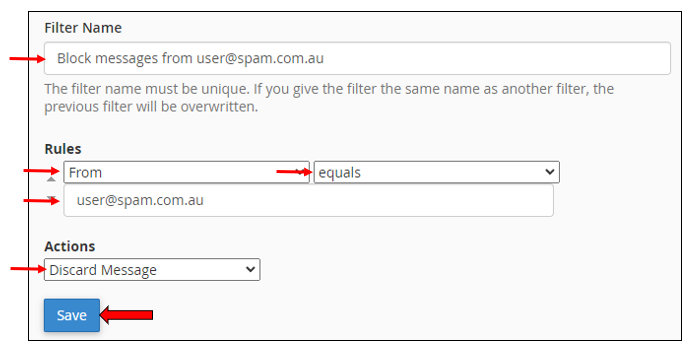
Step 6: Click on Save.