
Please Note:
Please ensure where it says ‘username’, you need to place your full email address otherwise, you will not be able to connect to the email account. Where it says ‘mail.yourdomain.com.au’, replace yourdomain.com.au with your actual domain name. Some of the instruction may differ depending on the version of Microsoft Outlook you are on.
This article is a guide to set up cPanel (IMAP or POP3) email account on Outlook 2016 or earlier versions. You may navigate between the tabs for IMAP or POP3.
I have already created a Mail Profile. Click here to skip to add an email account on Outlook.
Create a new Mail Profile on Outlook.
Creating a new Mail Profile will prevent any loss of data from your previous email accounts stored on your local computer. When migrating over to Perth Web Hosting, we always encourage users to first keep a backup copy of their old data (emails) by exporting it to a .PST file. We also encourage users to keep their old Mail Profile, in case they need to refer back to it in the future.
1. Firstly, close Outlook if you have it opened, and then open Control Panel.
(Click on Start, and type ‘Control Panel’)
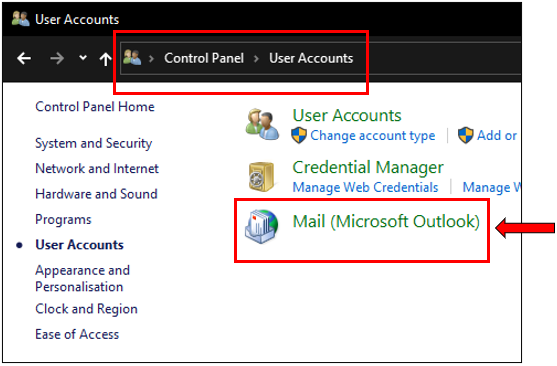
2. Navigate to User Accounts, then click on Mail (Microsoft Outlook).
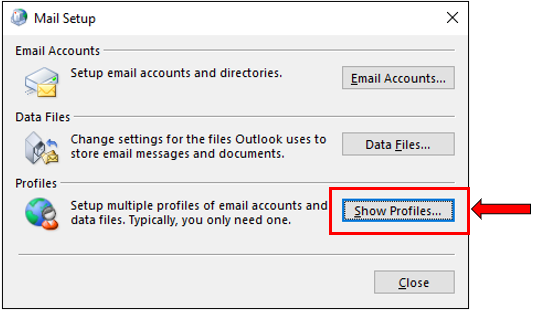
3. Click on Show Profiles…
4. A list of your existing Outlook mail profile will appear. Click on Add…

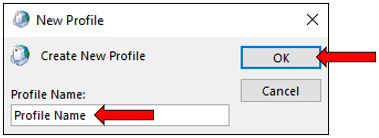
5. Enter a Profile Name for the email account you wish to use, and click OK.
6. Set the profile which you have just created as the default profile under ‘Always use this profile’ and click OK.
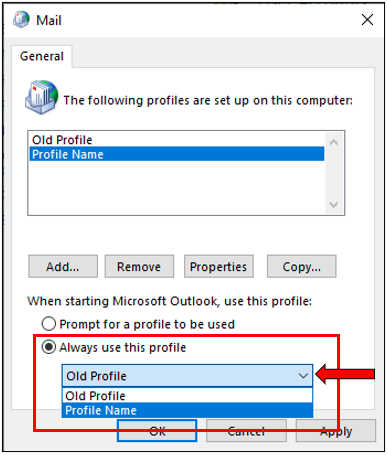
You have successfully created a new Mail Profile.
Adding your email account on Outlook.
1. If you are opening Outlook for the first time, skip to Step 3 (Add your email account).
If you already have Outlook set up,
Navigate to File > Account Settings > Account Settings.
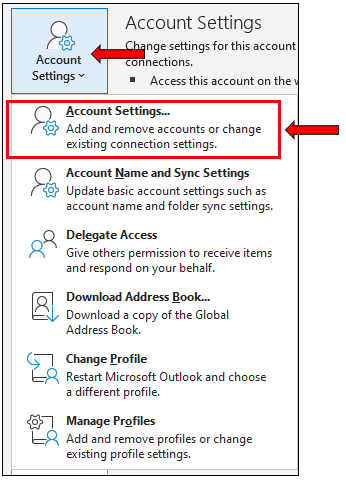
2. Select New to add your email account.

3. Select Manual setup or additional server types. Click Next.
You may choose to set up as IMAP or POP3 for the email account on your device. We recommend using IMAP.
(Click here for more information on the difference between IMAP and POP)
IMAP
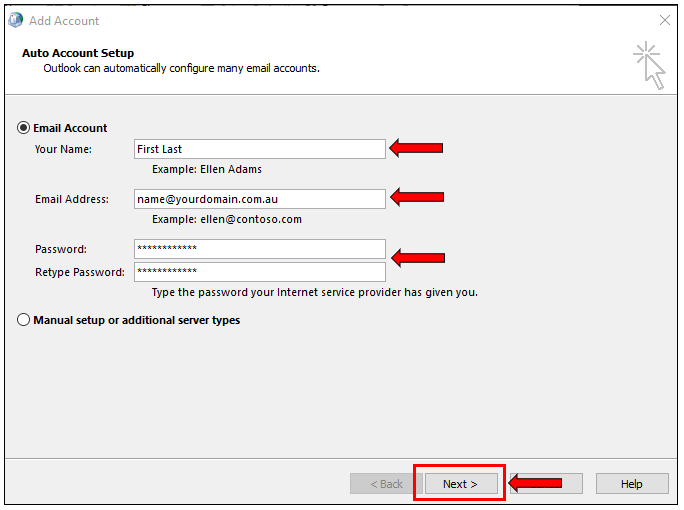
3. Enter your details – your display name, the full email address, and the password which was set in cPanel. Click on Next.
Note: Where the example refers to yourdomain.com.au you must replace this with your actual domain.
4. Select the checkbox for ‘Change account settings’. Click Next.

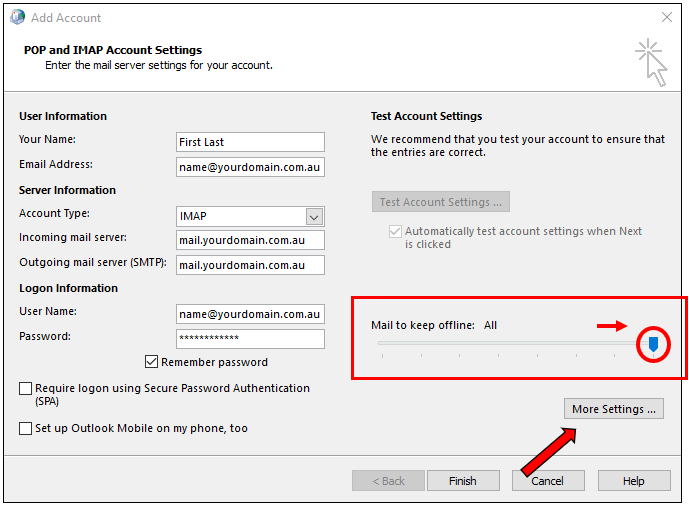
5. Drag the bar for ‘Mail to keep offline’ to All.
This will have all your emails stored locally on your computer.
Please note: The incoming and outgoing hostname can be the same on our platform.
POP3
3. Select Manual setup or additional server types. Click Next.
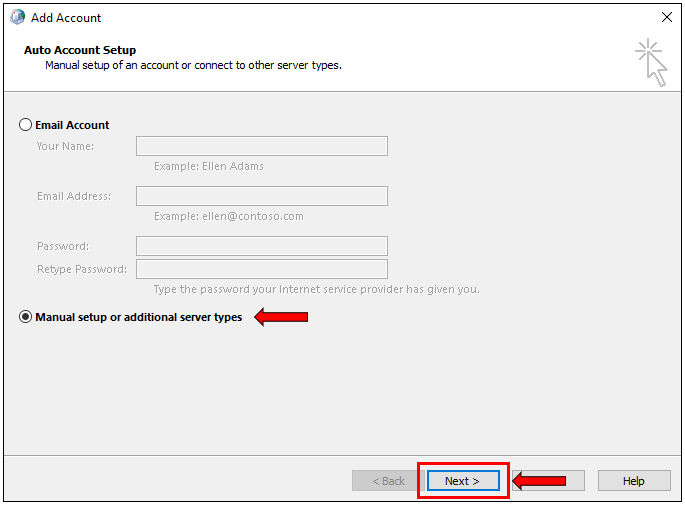
4. Select POP or IMAP, proceed by clicking Next.

5. Enter your details as below, and select the More Settings… button when you are done.
User Information
Your Name: Enter your name
Email Address: Enter your full email address (e.g. joe@yourdomain.com.au)
Account Type: Select POP3 in this instance.
Incoming mail server: mail.yourdomain.com.au (Replace yourdomain.com.au with your actual domain name)
Outgoing mail server (SMTP): mail.yourdomain.com.au (Replace yourdomain.com.au with your actual domain name)
Logon Information
User Name: Enter your full email address (e.g. joe@yourdomain.com.au)
Password: Enter your password.
Please note that the incoming and outgoing hostname can be the same on our platform.

6. Navigate to the Outgoing Server tab.
Please Note
Make sure that My outgoing server (SMTP) requires authentication is ticked, and Use same settings as my incoming mail server is checked, otherwise you will not be able to send emails.

IMAP
7. Manual Server Port can be configured in the Advanced tab if needed:

POP3
8. Click Advanced tab to configure the Port Numbers.
The image below is an example with SSL/TLS settings.
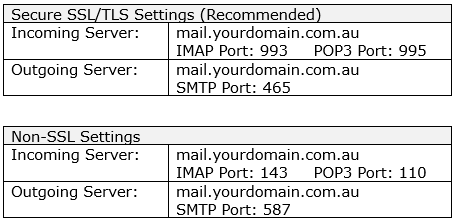
For Non-SSL settings, refer to the table below.
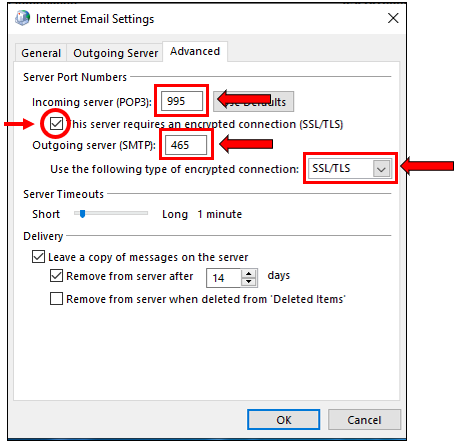
You can also configure how long the messages will be stored on the server.
The images shown above are for settings using SSL/TLS, which is recommended.
For optional Non-SSL settings, refer to the table below.
Please Note:
Please ensure where it says ‘username’, you need to place your full email address otherwise, you will not be able to connect to the email account. Where it says ‘mail.yourdomain.com.au’, replace yourdomain.com.au with your actual domain name. Some of the instruction may differ depending on the version of Microsoft Outlook you are on.
IMAP
9. Click on Finish and your email account has been added to your Outlook.

POP3
9. Click on Next.

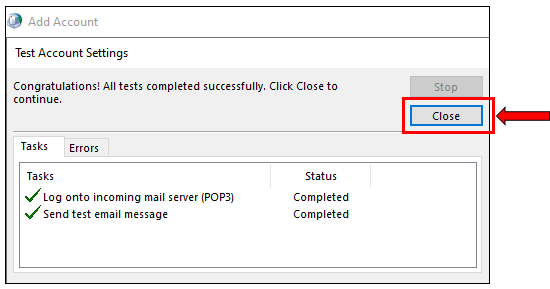
10. A window will come up to test the account settings.
If the test is successful, click Close.
If the test fails, please check all your account settings (including your username and password), and try again.
Click on Finish. Your account has successfully been added to Outlook.

Accessing your emails via Webmail
Webmail enables you to access your email account at any computer or devices. Enter the below URL in your web browser:
- webmail.yourdomain.com.au (replace yourdomain.com.au with your actual domain/website)