
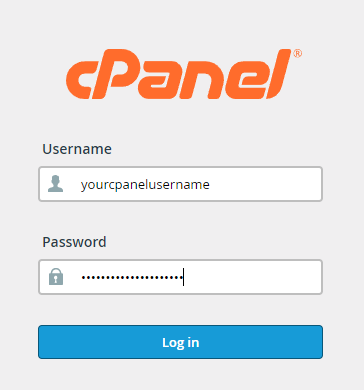
To login to your cPanel account, you can login via
- https://yourdomain.com.au/cpanel (your actual domain) or;
- via MyToolbox.
Your cPanel username and password would have been sent to you in the email when you signed up with us, subject titled “New Account Information“. If you have misplaced this email, please contact us and we are happy to resend you this email.
Before contacting us
Please make sure that you are officially listed as an authorised account holder on your account. We cannot provide login information to individuals who are not the account owner or designated as authorised users on the account.
If you receive emails from a domain or from a specifc user and wish to block them, you can do so via the SpamExperts spam filter portal. In this article, you will learn how to block emails before they hit your inbox. Before you proceed, please ensure your MX records are already pointing to:
- mxfilter.pwh.com.au – Priority 0
- mxfilter2.pwh.com.au – Priority 20
If your domain MX records do not point to the above records, then the block will not work. The confirm your domain name, MX records are using the above, you can check to see if your domain is pointed to these records by going to https://www.mxtoolbox.com
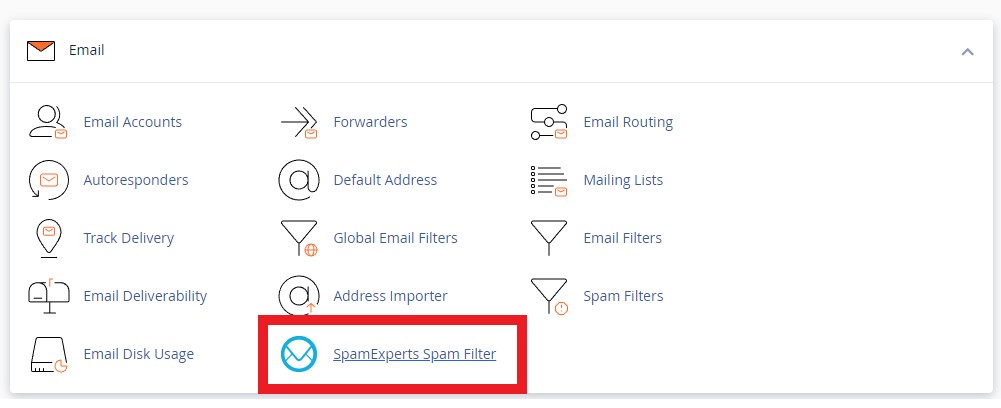
Click on SpamExperts Spam Filter (Or Professional SpamFiltering) highlighted red.
Are you looking to manage one of the addon domains in your account?
Please manage your addon domain by logging into your primary domain on your account. You need to add the addon domain within SpamExperts portal as an Alias. By doing so, you’ll streamline the management process and make it more convenient for you to oversee your addon domain within the SpamExperts portal. If you require any further assistance or have additional questions, please don’t hesitate to reach out. We’re here to help.
Find the primary domain that the cPanel account is set up for and click Login

If your domain has never been added to the filter, when you first log in to the filter it may take 1 minute to setup the filter for your domain. This process will also automatically configure all the relevant MX records within the DNS and email routing for your account.
Please note, that if you manage your own DNS through a third party, you will need to manually update the MX Records. The records are:
- mxfilter.pwh.com.au (Priority 0)
- mxfilter2.pwh.com.au (Priority 20)
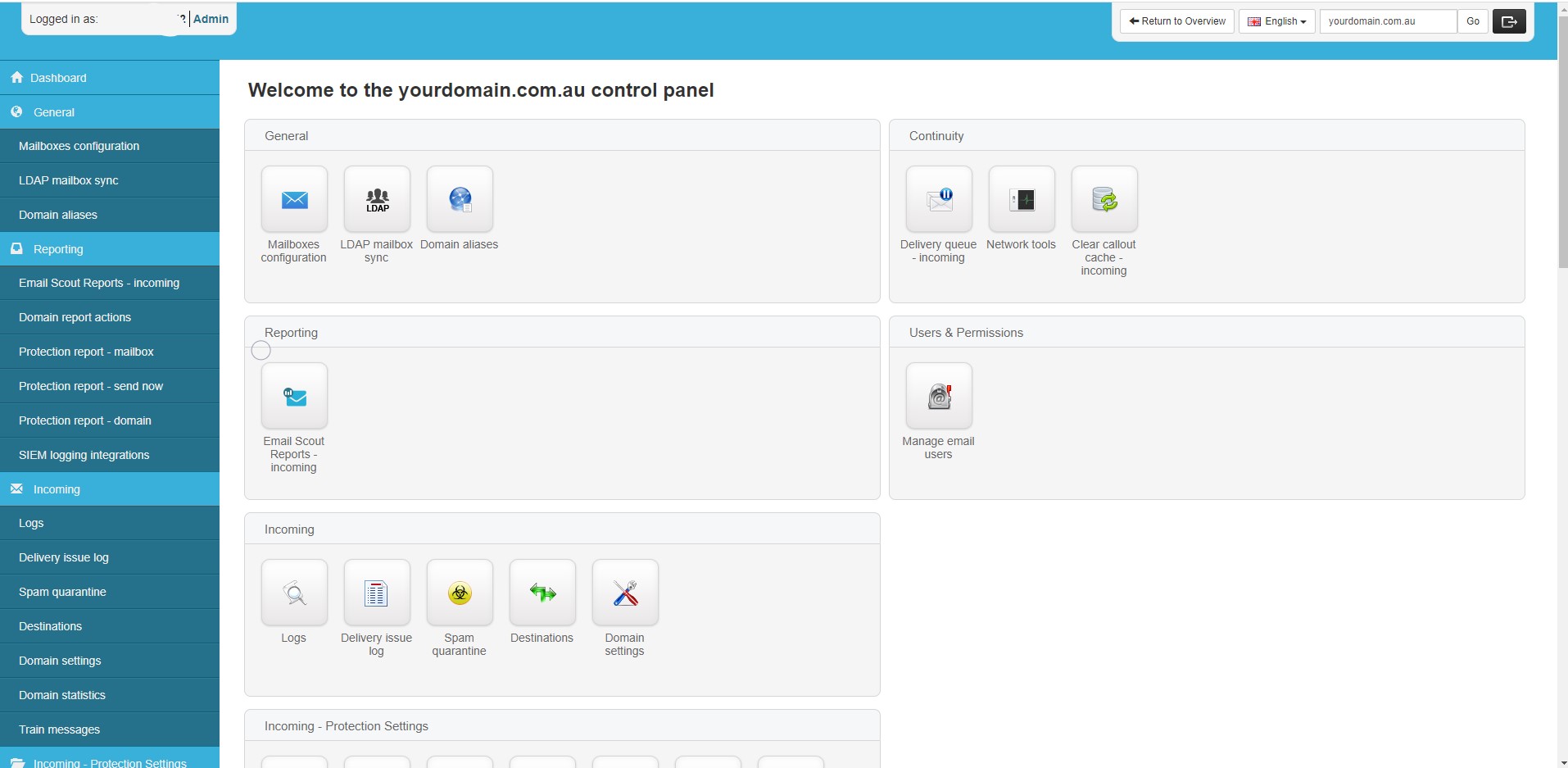
Below is a screenshot of what the control panel will look like when you log in to the spam filtering control panel
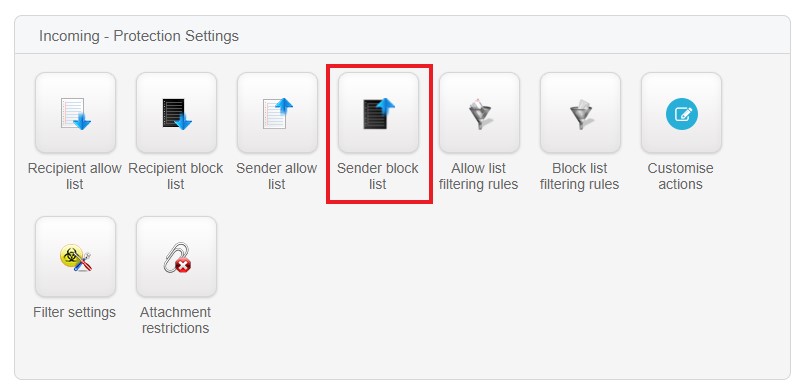
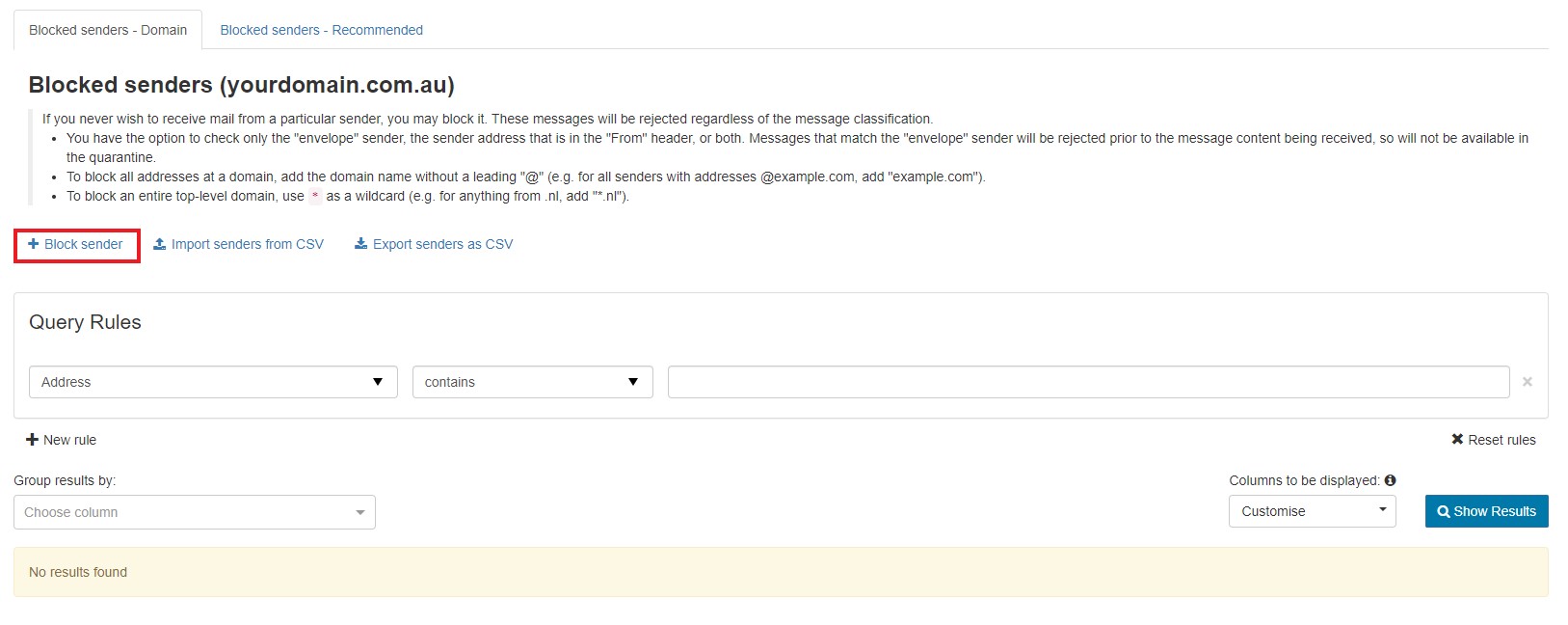
In the Incoming – Protection Settings group, click on Sender block list. You may need to scroll down to view the section.
There are a few ways you can block a sender. You can block an email address, a whole domain, and even domains with specific TLDs commonly used by spammers, such as a Russian (ru) or an info domain.
Click on the tab for instructions how to place a block on the email address
Email Addresses
Blocking a specific email address
If you want to block a specific email address, for example, john@gmail.com, and you would like to block this particular user, you still want to receive emails from other gmail.com email accounts. You must add the full address in the address field when you click the “+ Block Sender” button. Once entered, click the blue Save button.
Domains
Blocking a specific domain
If you would like to block all addresses coming from a particular domain, add the domain (i.e thespammersdomain.com) without the leading ‘@’ symbol in the address field in the address field when you click the “+ Block Sender” button. Once entered, click the blue Save button. This will block anything coming from the particular domain.
TLDs Domains
Blocking a specific domain TLD
If you wish to block email addresses originating from commonly used domain top-level domains (TLDs) that are often associated with spam, such as “ru” or “info,” you can add these domains to your filter list using a wildcard ”. To block the Russian TLD specifically, you can add “*.ru” in the address field without the leading ‘@’ symbol. This configuration will help you effectively filter out email addresses from the “.ru” domain, mitigating potential spam issues when you click the “+ Block Sender” button. Once entered, click the blue Save button. This will block anything coming from the TLD domain.
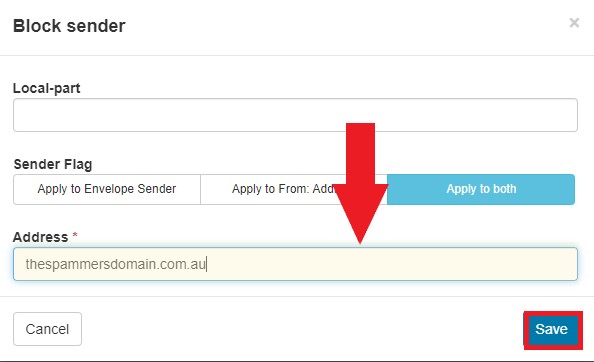
Once you have saved the changes, the block will be enforced immediately.