
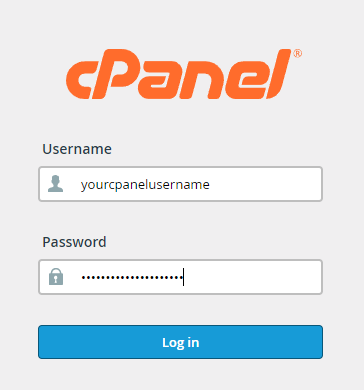
To login to your cPanel account, you can login via
- https://yourdomain.com.au/cpanel (your actual domain) or;
- via MyToolbox.
Your cPanel username and password would have been sent to you in the email when you signed up with us, subject titled “New Account Information“. If you have misplaced this email, please contact us and we are happy to resend you this email.
Before contacting us
Please make sure that you are officially listed as an authorised account holder on your account. We cannot provide login information to individuals who are not the account owner or designated as authorised users on the account.
Checklist: Before you remove the email account
Before proceeding with the removal of the email account, please ensure that you have addressed the following considerations:
- Backup: Have you taken a backup of the email account’s data to preserve any important information?
- Forwarder: Do you require a forwarder to be set up for this email account? If so, should incoming emails to this address be forwarded to another designated email account?
- Autoresponder: If you wish to inform senders that the email address is no longer in use and to update their contact information, consider setting up a simple autoresponder. Note that to maintain the autoresponder, the email account must remain active; however, you can disable access to the email account for security purposes.
These precautions will help ensure that you have taken the necessary steps to manage your email account effectively before proceeding with its removal.
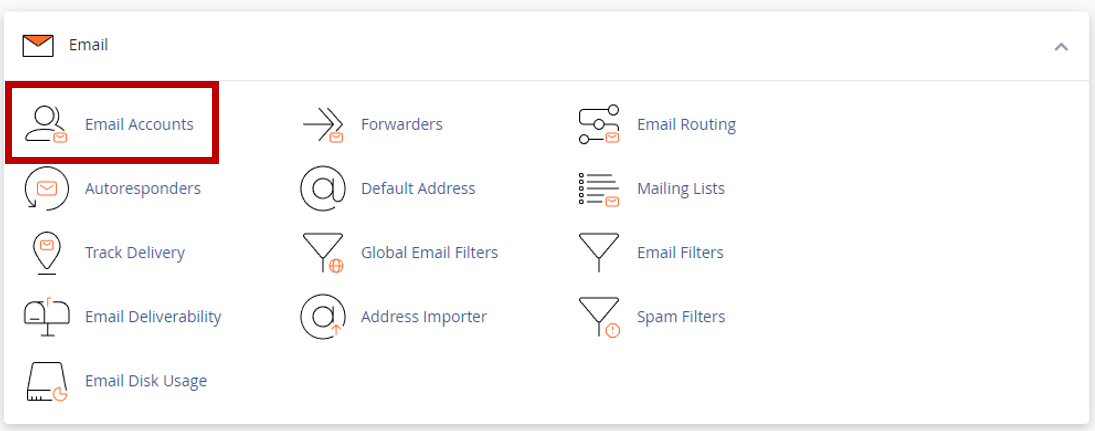
Scroll to the Emails Section
Under the Email section, click on email accounts
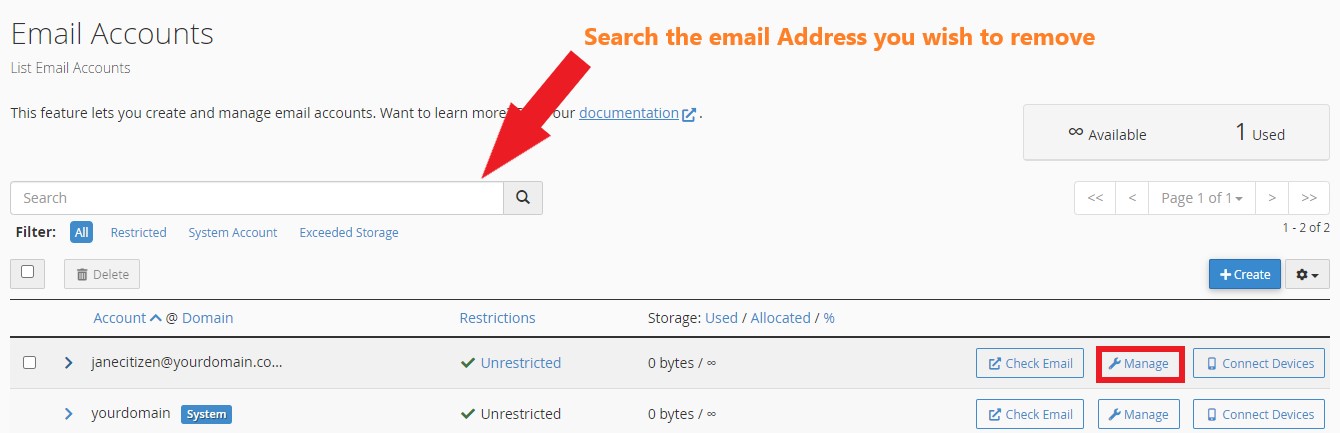
In this example, we will guide you through removing the email account, janecitizen@yourdomain.com.au. To proceed, please refer to the table below, where you will find the email account you wish to delete (i.e., janecitizen@yourdomain.com.au). If you prefer a quicker method, you can utilize the search function to locate the email account promptly. Once you have successfully located the account, click the “Manage” button to remove the email account (highlighted in Red).
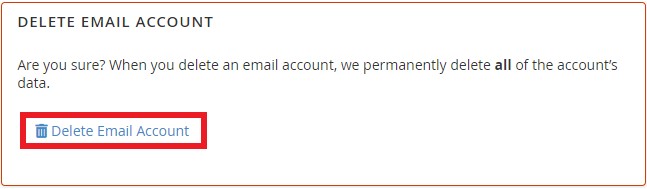
Scroll down to the bottom of the window and look for DELETE EMAIL ACCOUNT. Click on the button, “Delete Email Account”
Backup Warning
As a precautionary measure, we strongly advise you to create a backup of your data before proceeding with the removal of the email account. Please be aware that once the account is removed, we will retain offsite data backups for a duration of 21 days. After this period elapses, your data will become irretrievable. Therefore, it is essential to take the necessary steps to safeguard your information prior to initiating the account removal process.
The email account (in this example, janecitizen@yourdomain.com.au) will now be removed.