Email set up on Mail (iPhones, iPads) for iOS15 or later
Email set up on Mail (iPhones, iPads) for iOS15 or later
InformationThis guide is suitable for those who are on iOS15 (to iOS17) or later versions. Some instructions may differ depending on the iOS version you are on.
This article guides you through on setting up Exchange 365 email to your iPhone or iPad using the iPhone Mail app. If you would prefer to use Outlook, please click here. Please note that under the new Microsoft policy, you will be required to set up Multifactor-Authentication when you sign in to your Exchange account.
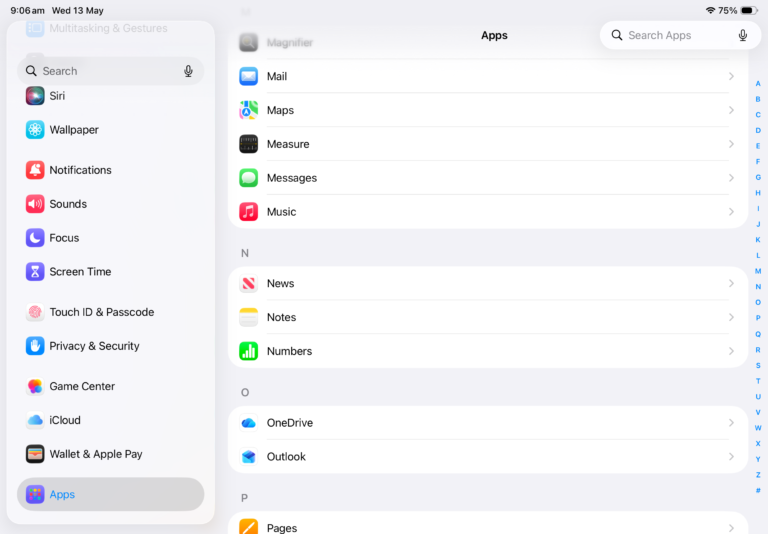
First, go to the Settings on your iPhone/iPad, scroll down and select Apps, and then Mail.
In the Mail application, select Mail Accounts, and then Add Account on the next page.
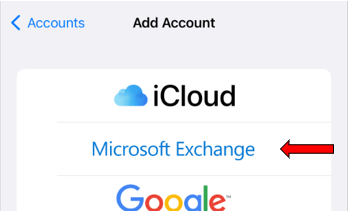
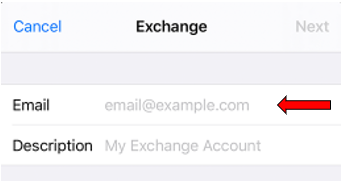
Select Choose from list and you will be presented with various types of email accounts. Select Microsoft Exchange from the options listed below, and continue to enter your full email address and a description for your email account.
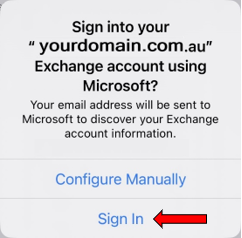
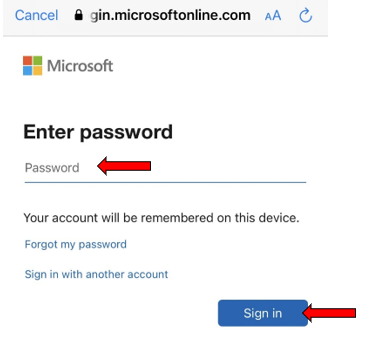
When prompted below, tap on Sign In. Enter your Password and tap on Sign in again.
If you have already the Microsoft Authenticator app on your phone, it will provide you with a 2-digit number. Enter that number into the Microsoft Authenticator app.
Otherwise, follow the instructions in the below link on a step-by-step guide on setting up Multi-Factor Authentication (MFA).
Lastly, make sure the Mail option is selected, and tap on Save.
Your email account has been successfully added to your Mail app.
Accessing your Exchange emails via Outlook on the web
Outlook on the web is a web-version of Microsoft Outlook. It enables you to access your Exchange email account on any computer or devices. To access Outlook on the web, enter the below URL in your web browser: