To login to your cPanel account, you can login via
https://yourdomain.com.au/cpanel (your actual domain) or;
via MyToolbox.
Your cPanel username and password would have been sent to you in the email when you signed up with us, subject titled “New AccountInformation“. If you have misplaced this email, please contact us and we are happy to resend you this email.
Before contacting usPlease make sure that you are officially listed as an authorised account holder on your account. We cannot provide login information to individuals who are not the account owner or designated as authorised users on the account.
ImportantPerth Web Hosting recommends that you always use the latest stable PHP version which at this time is PHP 8.1.
While PHP 8.2 has been released, we do not recommend using this yet as it has not been tested for stability and compatibility as thoroughly as PHP 8.1.
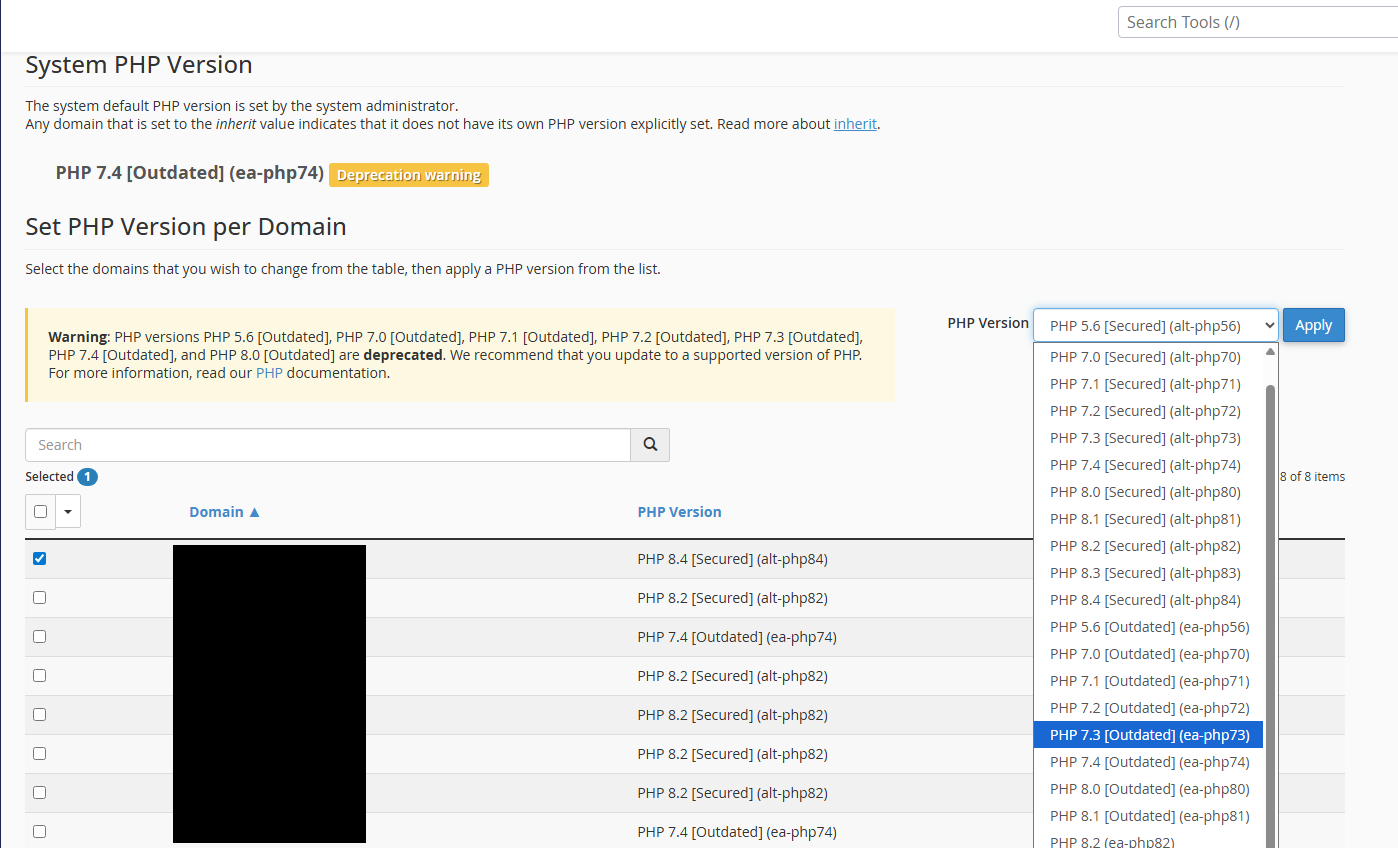
How to Change the PHP Version
Sometimes websites, themes, and plugins require a particular PHP version to function correctly. Additionally, it is recommended to keep your PHP version up to date to ensure the security of your website.
To do this, please log in to your cPanel account using either of the methods outlined above.
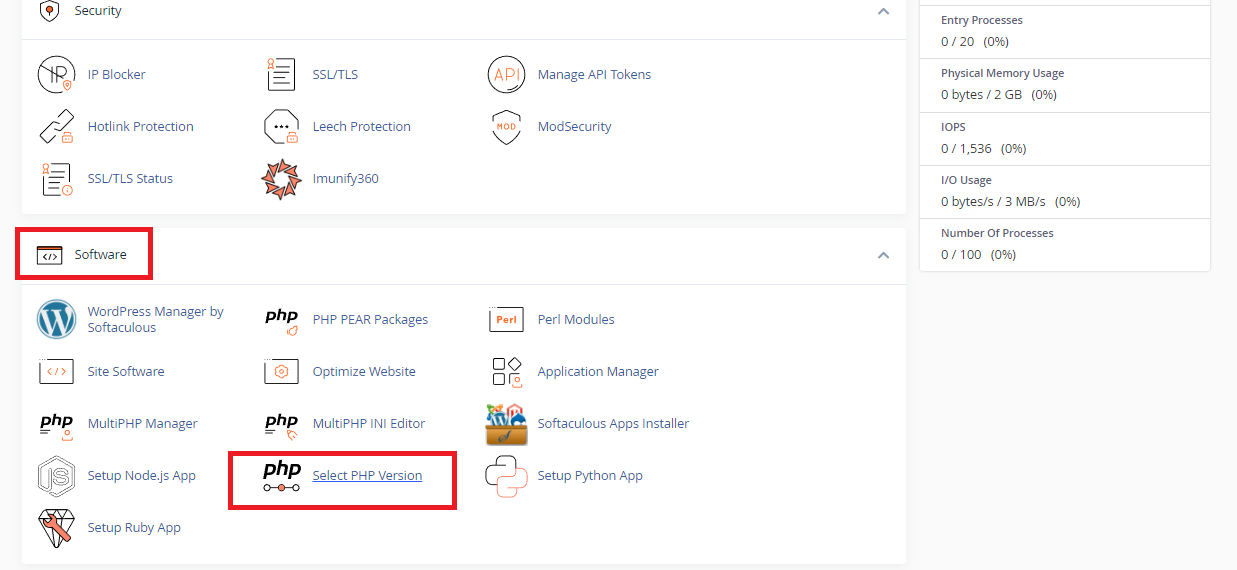
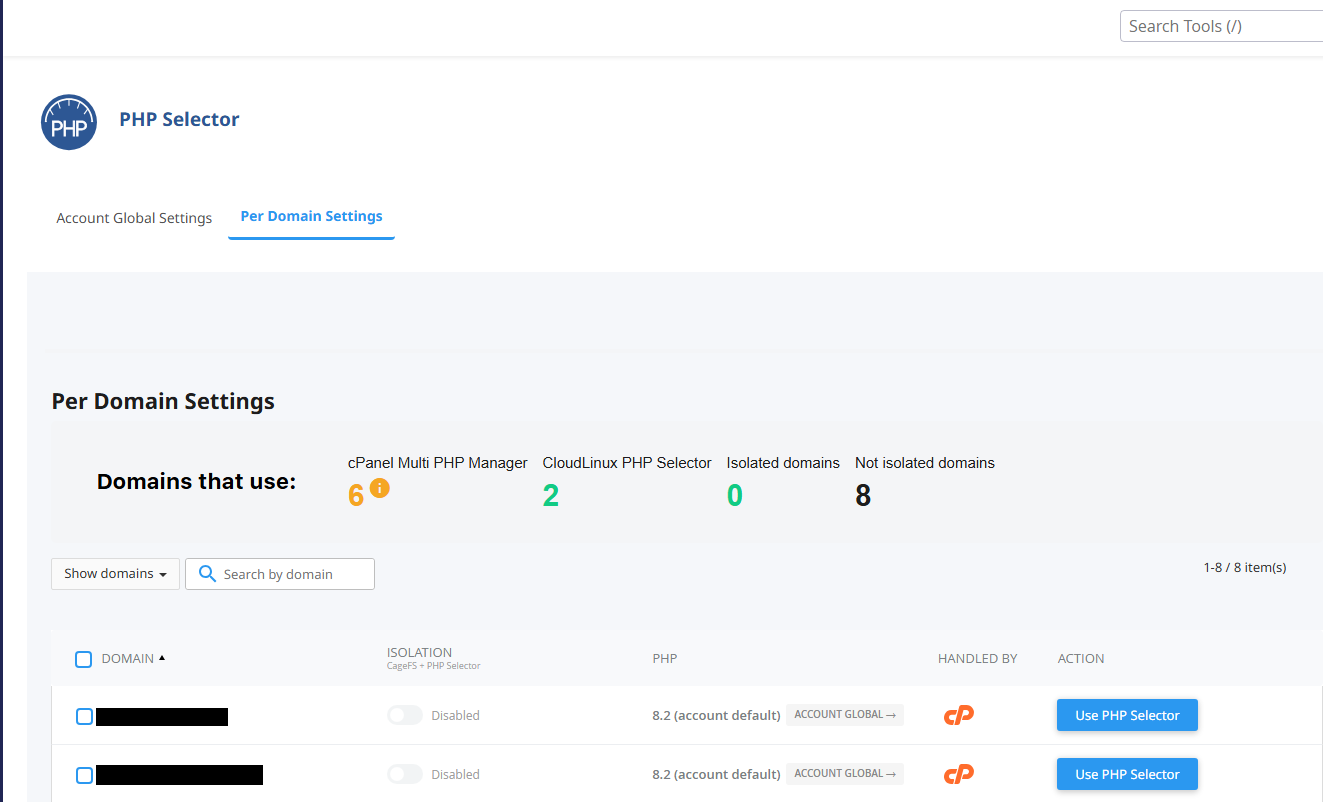
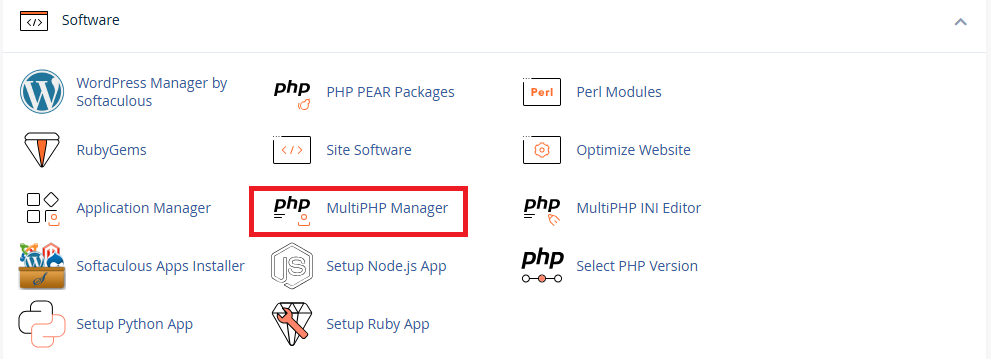
Step 1:Once logged in, scroll down to Software and click on Select PHP Version
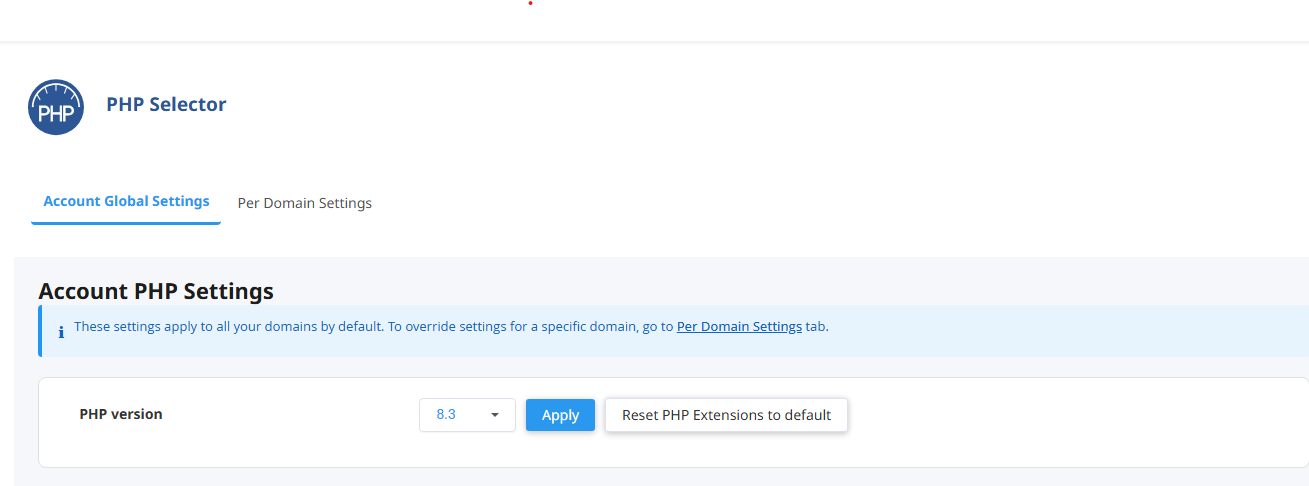
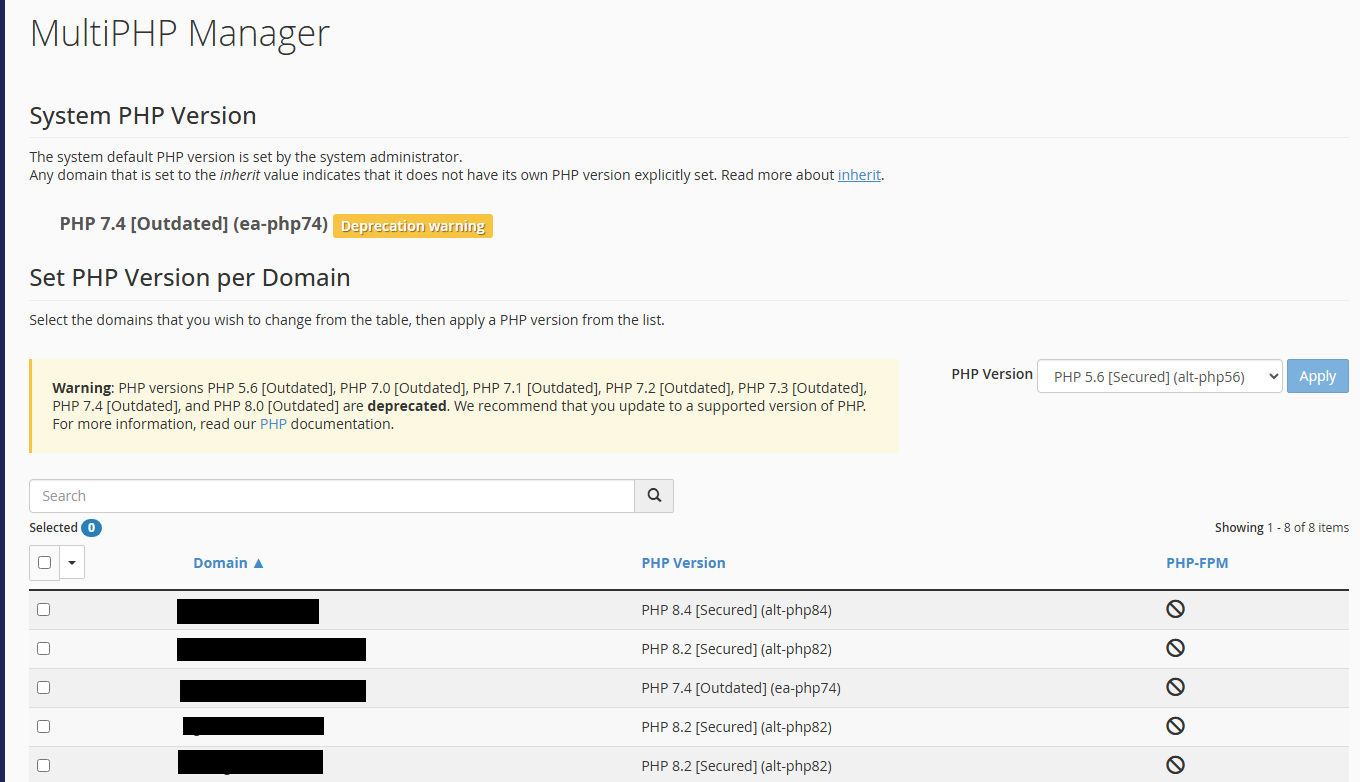
Step 2: You can change your account global PHP version by selecting the drop down menu, selecting the desired PHP version, and then selecting Apply.
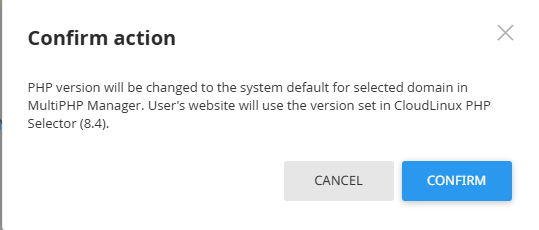
Once you have set an account global PHP version, you can align your websites to the same PHP version.
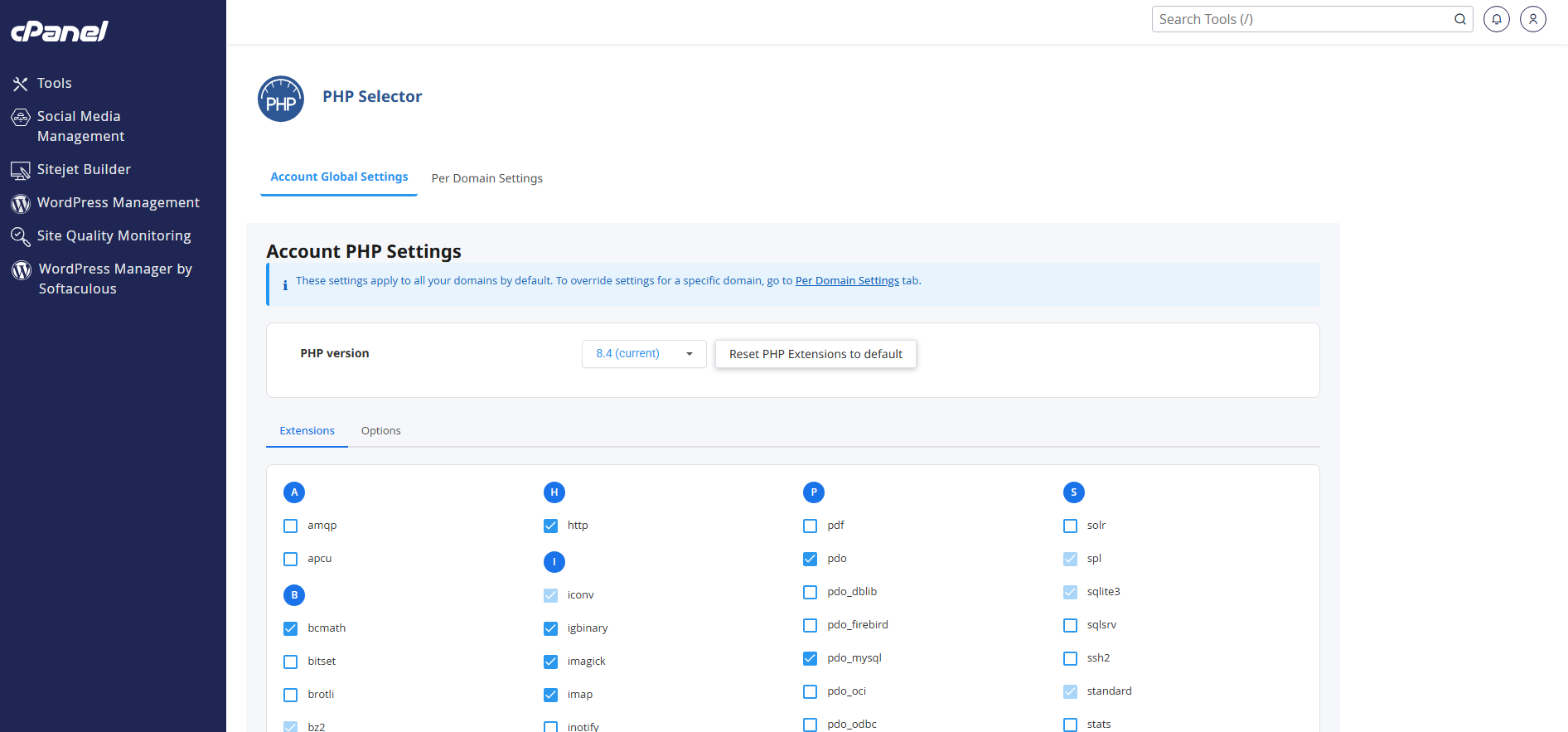
Step 3: You should ensure that all necessary PHP extensions are enabled. The Extensions tab will be selected by default, scroll down and you can enable or disable PHP modules as required.